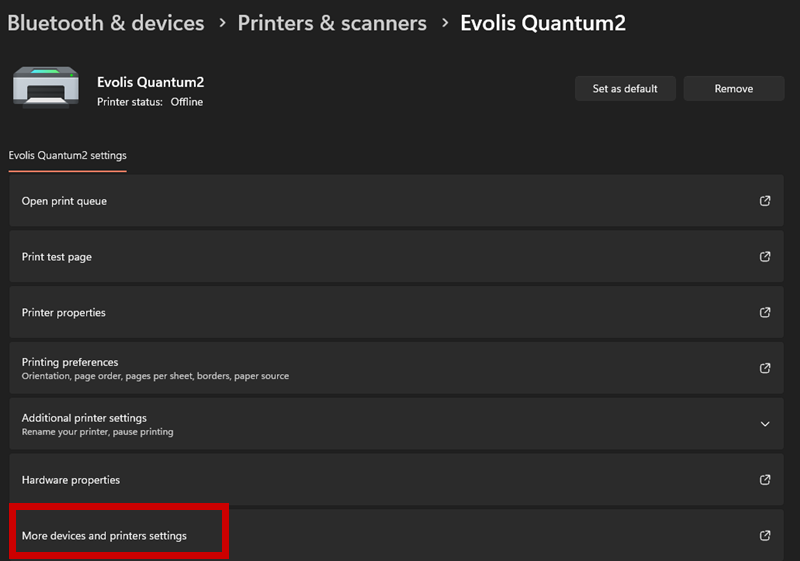
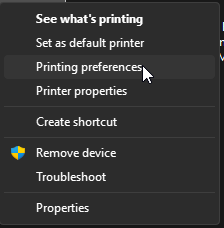
the workaround for the crashing driver interface is to navigate to Settings > Bluetooth & Devices > Printers and Scanners > Evolis Quantum 2 > More devices and printers settings. This will open the Old windows 10 interface where you can right click on the printer and select Printing preferences. From here you can select the ribbon necessary and apply the settings. Dont forget to send a print job (not a technical test card) to push the setting to the printer
Was this article helpful?
That’s Great!
Thank you for your feedback
Sorry! We couldn't be helpful
Thank you for your feedback
Feedback sent
We appreciate your effort and will try to fix the article